How to Add a Pop Up on Shopify
Shopify adds pop ups through apps. How to add one step by step, which kind to pick, and what to check when it doesn't show.
Read summarized version with
 ChatGPT
 Claude
 Perplexity
 Grok
You want a pop up on your store, so you open the theme editor and look for a button that adds one, and there isn't one. Unless your theme came with a pop up built in, you add one with an app: Shopify Forms, Shopify's free app, for an email signup form, or a social proof app like SalesPop to show real orders, reviews, a discount code or a welcome message. The steps for both are below, and none of them needs code.
First, pick the kind of pop up
"Pop up" covers two different things on Shopify. A signup form asks the shopper for an email address or phone number. A social proof pop shows something that really happened in your store and asks for nothing. The table matches the goal to the pop.
Your goal Pop to use App Collect email or SMS signups A signup form, with an optional discount Shopify Forms, or SmartrMail for signups that feed its welcome emails Show that people buy from you Orders pop, from your real orders (how recent sales notifications work) SalesPop Show a discount code Discount pop, which copies the code on click SalesPop Greet first-time visitors Welcome pop, with a message, an image or both SalesPop Show what buyers thought Product Reviews pop, from Judge.me, a CSV file or reviews you add SalesPop Show a product is nearly sold out Low Inventory pop, from your real Shopify stock SalesPopIf you're still choosing between apps, our roundup of the best pop up apps for Shopify sorts them by what each one does.
How to add a pop up on Shopify with SalesPop
These steps follow the setup checklist on SalesPop's Dashboard. A new install starts with every pop turned off, so nothing appears on your store until you switch one on.
- Install SalesPop from the Shopify App Store and approve the subscription Shopify asks for. Pops won't show until it's approved.
- Open SalesPop, go to Dashboard and click Enable notifications in the Storefront notifications card. The badge changes to App Enabled.
- In the Theme app extension card, click Open theme editor. Turn on the SalesPop app embed and click Save in the theme editor.
- Back in SalesPop, click Check status. The badge changes to Active.
- Go to Pop Settings, then General Settings, and choose where pops appear, how long they stay, which devices show them and the pop language. Click Save.
- Go to Pops Library and turn on a pop, for example Orders. To change its text or design first, click Set up.
- Open your store in a private (incognito) window and wait a few seconds for the first pop.
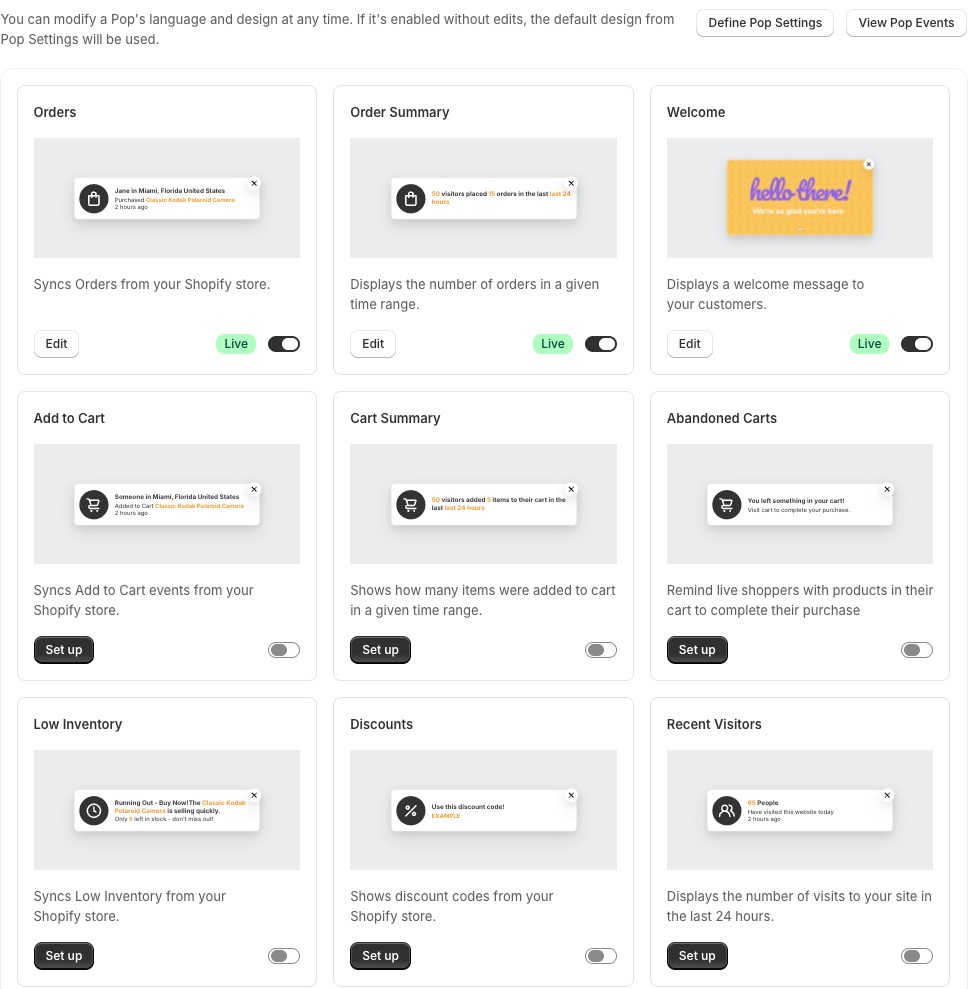
The Orders pop has something to show from day one, because SalesPop imports your 25 most recent paid orders when you install it. A store without sales yet can start with the Welcome, Discounts, Add to Cart, Product Reviews or Low Inventory pops, since none of them needs an order. Each pop has its own guide: the welcome pop for greeting new visitors and the discount pop for showing a code.
How to add an email signup pop up with Shopify Forms
Shopify Forms doesn't come installed with any Shopify plan, but it's free to install and use. Shopify's help center describes the setup, and these are the main steps:
- Install Shopify Forms from the Shopify App Store.
- Create a form and choose the popup format. You can add a new or existing discount to reward the signup.
- Turn on the Forms theme app embed in your theme, which popup forms need in order to show.
- In the form's behavior settings, choose the devices, the pages (all pages or certain page types, such as product pages) and the trigger: the first, second or third page view, right away or after a delay. On desktop you can also show it when the visitor moves to leave the page.
Shopify's guide to popup form settings has every option. One detail worth knowing: when a visitor dismisses the form, it doesn't show to them again unless they clear their browser data.
Where to show it and how often
Narrow where each pop shows. In SalesPop, each pop has a Targeting tab where you choose the pages it appears on, the device, the visitor's country or state, new or returning visitors, and the UTM in the link that brought them. Rules can require every condition or just one.
Pop Settings control position: a corner on desktop, the top or bottom of the screen on mobile, where it's worth picking the spot that leaves your add-to-cart button clear. You also set how long each pop stays, the delay before the first and the gap between them, plus a display limit per visitor if repeat shoppers see too many. Pops show on your store's pages and never on Shopify checkout. On phones, a small pop is a different thing from a form that covers the page, and our post on mobile popups and intrusive interstitials explains why that matters for search.
Pop up not showing? Three checks
- Is the subscription approved? If the Dashboard says your subscription is inactive, click Activate subscription and approve it in Shopify.
- Is the app embed on in the theme you publish? The app embed is set per theme, so after you switch themes, turn it on again in the new one and click Save in the theme editor.
- Is at least one pop live, and do its rules match? Check that the pop's badge says Live and that its Targeting rules match the page you're testing. Test in a private window, because a visitor who has already seen a pop may not see it again straight away.
SalesPop's help has a longer checklist for pops that stopped showing.
FAQ
Can Shopify do pop-ups without an app?
Not from the theme editor alone, unless your theme includes one. Shopify's own option for signup pop ups is Shopify Forms, a free app. Pops that show real orders, carts or reviews come from a social proof app such as SalesPop.
How do I edit my pop-up on Shopify?
In SalesPop, go to Pops Library and click Edit on the pop's card, change the text, design or targeting, and click Save in the Unsaved changes bar at the top of the page.
Why is my pop-up not showing on Shopify?
The most common causes are an app embed that wasn't saved in the theme editor, an embed turned on in a different theme from the one you publish, or no pop switched on. Work through the three checks above.
Can I show a pop up only on one page?
Yes. On the pop's Targeting tab, add an Is on page(s) condition with the page's URL path, and the pop shows only there.
Do pop ups show on the checkout page?
SalesPop pops show on your online store pages, not on Shopify checkout.
What is the best pop up app for Shopify?
It depends on the job: a capture app for email signups, a social proof app for showing real activity. Our roundup of the best pop up apps for Shopify compares seven of them.
Start with the pop your store needs
Choose the app by what your store is missing. A signup form collects addresses you can email later, and SalesPop shows new visitors the orders, reviews and stock levels that are really in your store.
Add SalesPop to your store. Free to start · First Pop in about a minute · No code.