Recent Sales Notifications for Black Friday: A Setup Guide
A recent sales notification is a small pop-up that shows a real, recent order from your store. When they help, when they don't, and how to set them up.
Read summarized version with
 ChatGPT
 Claude
 Perplexity
 Grok
Summary
- A recent sales notification shows a real, recent order to a visitor who's deciding whether to trust your store.
- They matter most for new visitors, like the ones a Black Friday ad sends to a product page.
- Show them on product and collection pages and keep the frequency low.
- A quiet store has less to show. Never fill the gap with invented orders.
- Pair them with a discount or announcement Pop for your real Black Friday offer.
A recent sales notification is a small pop-up on your store that shows a real order someone just placed: usually a first name, the product and how long ago. It answers a quiet question a new visitor has before buying from a store they've never heard of. Does anyone actually shop here?
This guide covers what these notifications are, when they help and when they don't, where they fit during Black Friday and Cyber Monday, and how to set them up on Shopify.
Recent sales notifications during BFCM at a glance
Moment in BFCMWhat the shopper is unsure aboutWhich Pop answers itWhere to show itFirst visit from a Black Friday ad"Is this store real?"Recent orders PopProduct pagesBrowsing the sale collection"What are people actually buying?"Recent orders PopCollection pagesDeciding on one product"Did other buyers like it?"Reviews PopProduct pagesAdding to cart"Is the deal still on?"Discount or announcement Pop with the real offerProduct and cart pagesReturning on Cyber Monday"Is this still worth it?"Recent orders Pop plus the Cyber Monday announcementHome and product pagesWhat a recent sales notification is
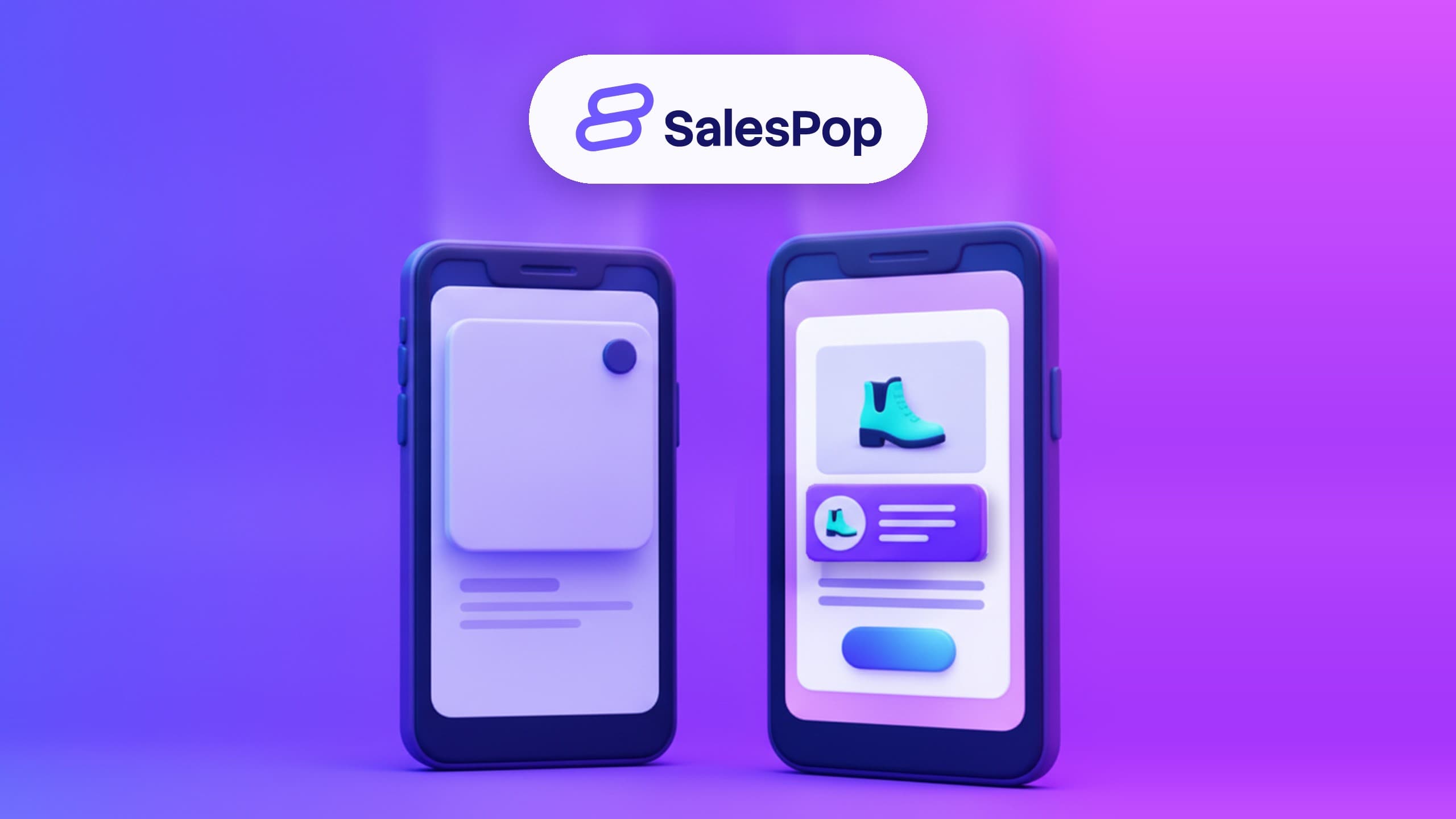
It's a short message, usually in a lower corner of the screen, built from an actual order in your store. A typical one looks like this (illustrative):
Sarah bought the Linen Throw Blanket · 12 minutes ago
That's it. No banner, no sound, no countdown. It appears for a few seconds and goes away.
Three details decide whether the notification helps or hurts:
- It comes from a real order. If the order didn't happen, it isn't social proof. It's an invented claim.
- It respects the buyer's privacy. SalesPop uses the customer's first name only, and you can switch on its anonymizer to show "Someone" instead (how to hide a customer's name).
- It's about something the visitor can buy. A notification for a product that's sold out, or not in the sale, sends people nowhere. In SalesPop, adding the product tag
salespop-skipin Shopify keeps that product out of your Pops (excluding products).
In SalesPop, the recent orders Pop sits alongside add-to-cart, discount, announcement and reviews Pops in the same app.
Do recent sales notifications work? An honest answer
They do one specific thing well: they show a new visitor that other people buy from you. That matters most when the visitor doesn't know you yet, which is exactly the situation of someone who clicks a Black Friday ad from a store they've never seen.
They do less in a few situations, and it's better to know that before you install anything:
- A quiet store has less to show. The Pop is built from your real orders, so a handful of orders a day means a handful of things to show. An honest app doesn't fill the gap with made-up orders. That's the right trade.
- Repeat customers don't need them. Someone who has ordered from you three times already trusts the store.
- They don't replace the basics. A clear price, a shipping date and a returns policy answer more doubts than any pop-up.
We won't give you a percentage. Any number like that depends on the store, the traffic and the season, and we don't have one of our own we'd stand behind. What we can tell you is what they're for: a small, real signal at the moment a new visitor is deciding.
If you want to know whether a change to a Pop made a difference on your store, our guide to A/B testing pop-ups without fooling yourself shows how to read the numbers.
Where they help most during Black Friday and Cyber Monday
If your Black Friday ads send people straight to product pages, some of those visitors will be seeing your store for the first time. Two visitors are worth designing for.
The ad visitor who has never seen your store. They clicked a deal, landed on a product page and are looking around for reasons to trust you. A recent order for that product, or for something in the same sale, tells them the store is open and people are buying. Show the recent orders Pop on product pages. SalesPop never shows Pops on checkout, so that step stays clear.
The Cyber Monday returner. They visited on Friday, didn't buy, and came back. They already know who you are. What helps them is knowing the offer is still on and what other people picked. Pair the recent orders Pop with an announcement Pop for your real Cyber Monday offer.
For the wider plan (stock, shipping, email, offers), see our Black Friday and Cyber Monday guide for Shopify.
How to set up recent sales notifications on Shopify
Here's the setup in SalesPop, step by step.
- Install SalesPop from the Shopify App Store. It installs from Shopify, with no new account and no code. The free plan covers 200 visitors a month and includes recent sales Pops. Paid plans start at US$ 29 a month with a 7-day free trial (as of October 2026).
- Choose the recent orders Pop. It's built from your store's real orders, so there's nothing to type in and nothing to invent.
- Set where it appears. For Black Friday, a good starting point is product pages and the sale collection. Each Pop has its own page rules, so a reviews Pop can live somewhere different from the recent orders Pop.
- Pick the corner and the frequency. Choose the screen corner that doesn't cover your add-to-cart button on mobile. Then set how often Pops appear and for how long. Fewer, well-timed Pops read as information. A Pop every few seconds reads as a trick.
- Match your brand. Set the colors, corners and product photo so the Pop looks like part of your store, not an ad on top of it.
- Preview, then enable. Every Pop previews before it goes live. Check it on a phone and on a laptop, then turn it on.
That's the whole setup. If you'd rather walk through it with someone first, you can book a call with the SalesPop team.
Pair them with your real offer
A recent orders Pop says "people buy here". It doesn't say "there's a deal today". For that, add a discount or announcement Pop with your actual Black Friday offer: the code, the amount, the end date. We explain how they work in discount notifications in SalesPop.
If you already have good reviews, a reviews Pop on product pages answers a different question ("did people like it?"). Our post on how reviews help sales in your online store covers where they fit.
Keep the offer honest. If the sale ends Monday at midnight, say Monday at midnight, and end it then.
Frequently asked questions
Are recent sales popups fake?
They don't have to be. In SalesPop, the recent orders Pop is created automatically each time someone places an order on your store, so it only shows a purchase that happened. SalesPop shows real activity only, with no fake countdowns and no fake urgency.
Can I show them only on product pages?
Yes. Each Pop has its own page rules, so you can show the recent orders Pop on product pages and the sale collection and leave the rest of the store without it.
Do they work for a small store?
They work the same way, with fewer orders to show. A smaller store simply has less recent activity, and that's honest and fine. The free plan (200 visitors a month, as of October 2026) is a low-risk way to see how they look on your store before Black Friday.
SalesPop is rated 4.7 stars on the Shopify App Store (as of October 2026). Install it, turn on the recent orders Pop for your product pages, and preview it before Black Friday. Install SalesPop on Shopify